
Welcome to CapturePro
Your complete guide to creating, customizing, and sharing professional marketing funnels.
What is CapturePro?
CapturePro is a marketing platform that allows you to create, customize, and manage professional marketing pages quickly and easily. You do not need technical skills or coding knowledge. Everything is designed to be simple and beginner-friendly.
It is ideal for affiliate marketers, network marketers, and digital entrepreneurs who want to promote offers, generate leads, and duplicate systems across teams in a scalable way.
How CapturePro Works
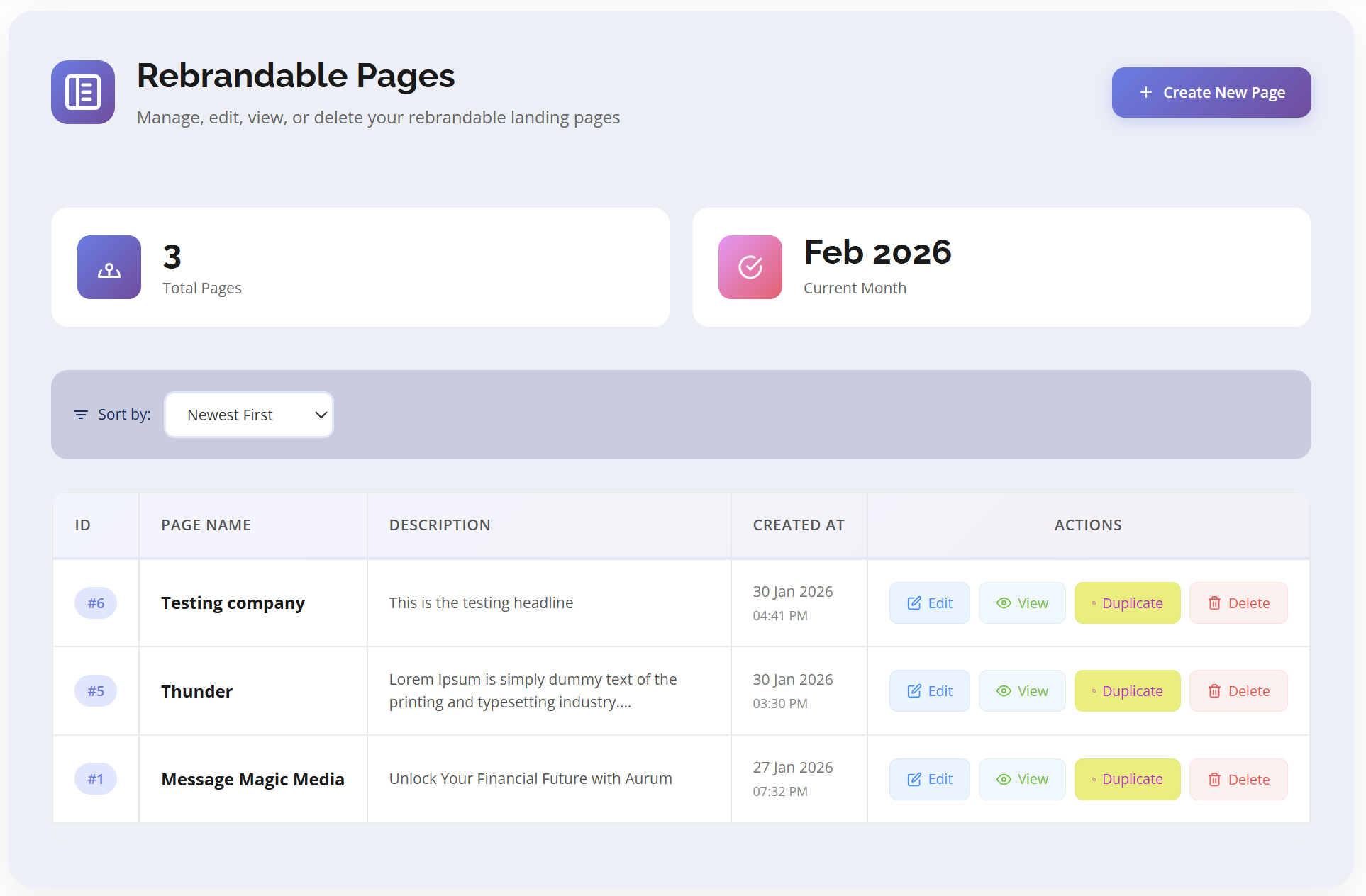
CapturePro works by providing prebuilt funnels and pages that can be personalized through a capturepro process. Users select a funnel, customize the content to match their branding, and then generate a unique capturepro link.
This link can be shared with prospects or team members, allowing pages to be duplicated and personalized instantly while tracking referrals and leads automatically.
Getting Started
Follow these simple steps to start creating and managing your pages inside CapturePro.

Step-by-Step: How to Use CapturePro
Step 1: Register an Account
First, create your account by completing the registration form. Once registered successfully, log in to access your member dashboard.
Step 2: Login to Your Dashboard
After logging in, you will be redirected to your member dashboard where you can manage all your marketing pages.
Step 3: Go to the Pages Menu
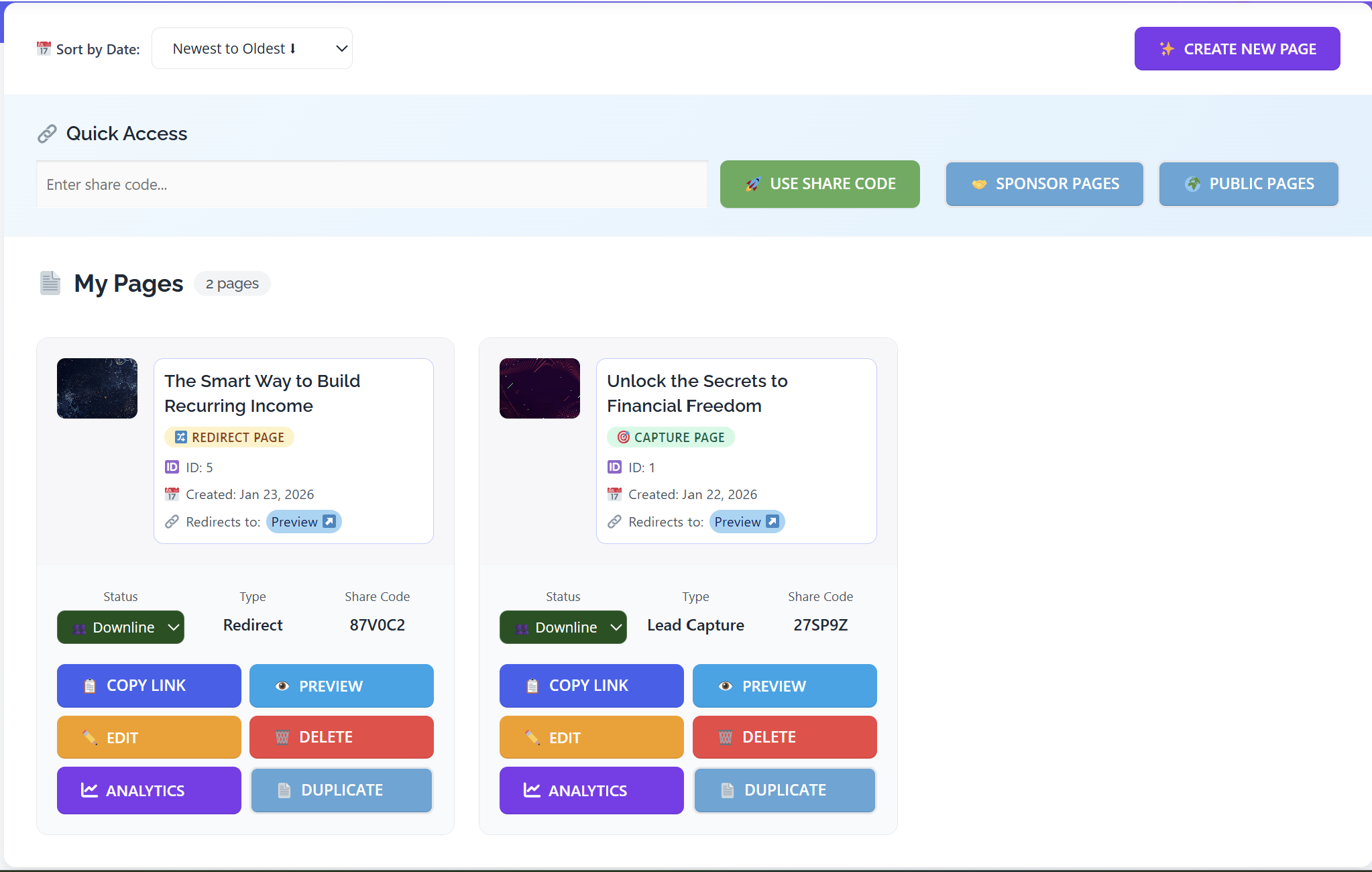
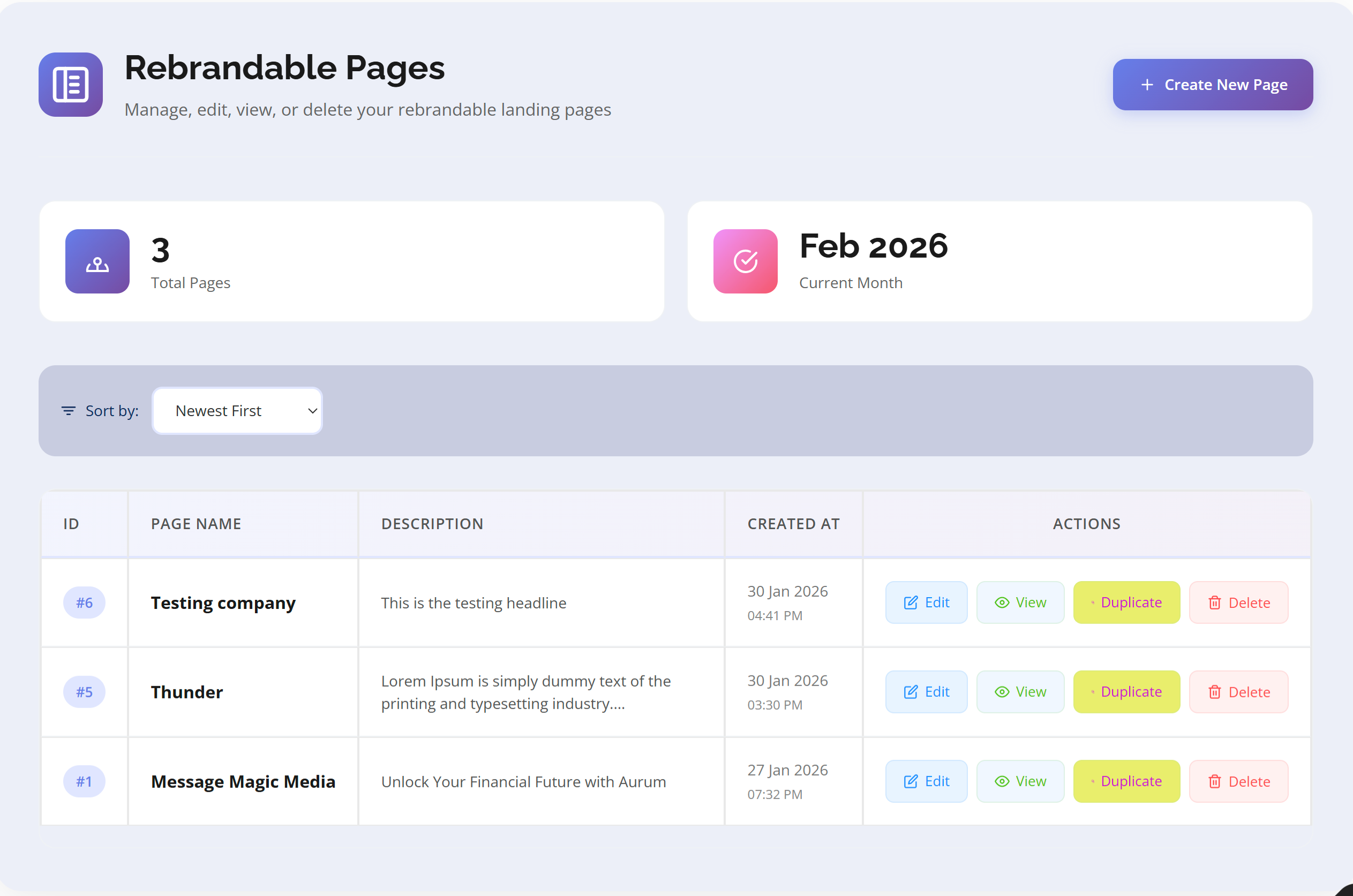
In your dashboard menu, click on Pages. Here you will see the list of all pages you have created.
Step 4: Create a New Page
Click on the Create Page or Add Page button. A form will open where you can enter your page details such as title, content, settings, and other required information.
Step 5: Fill the Form and Save
Complete the form carefully and click the Save button. Your new page will be created instantly.
Step 6: Manage Your Page
Once your page is created, you can:
- View your page
- Edit page details
- Duplicate the page
- Check Analytics
- Delete the page
Everything is manageable directly from the Pages section inside your dashboard.
Quick Start: Register → Login → Go to Pages → Create Page → Fill Details → Save → Start Sharing Your Page.
Account Setup
Set up your account and navigate the dashboard.
Creating an Account
To start using CapturePro, users must create an account through the official signup process. During registration, basic details such as name, email address, and login credentials are required.
Once registered, users receive access to the main dashboard where all tools and features are managed.
Dashboard Overview
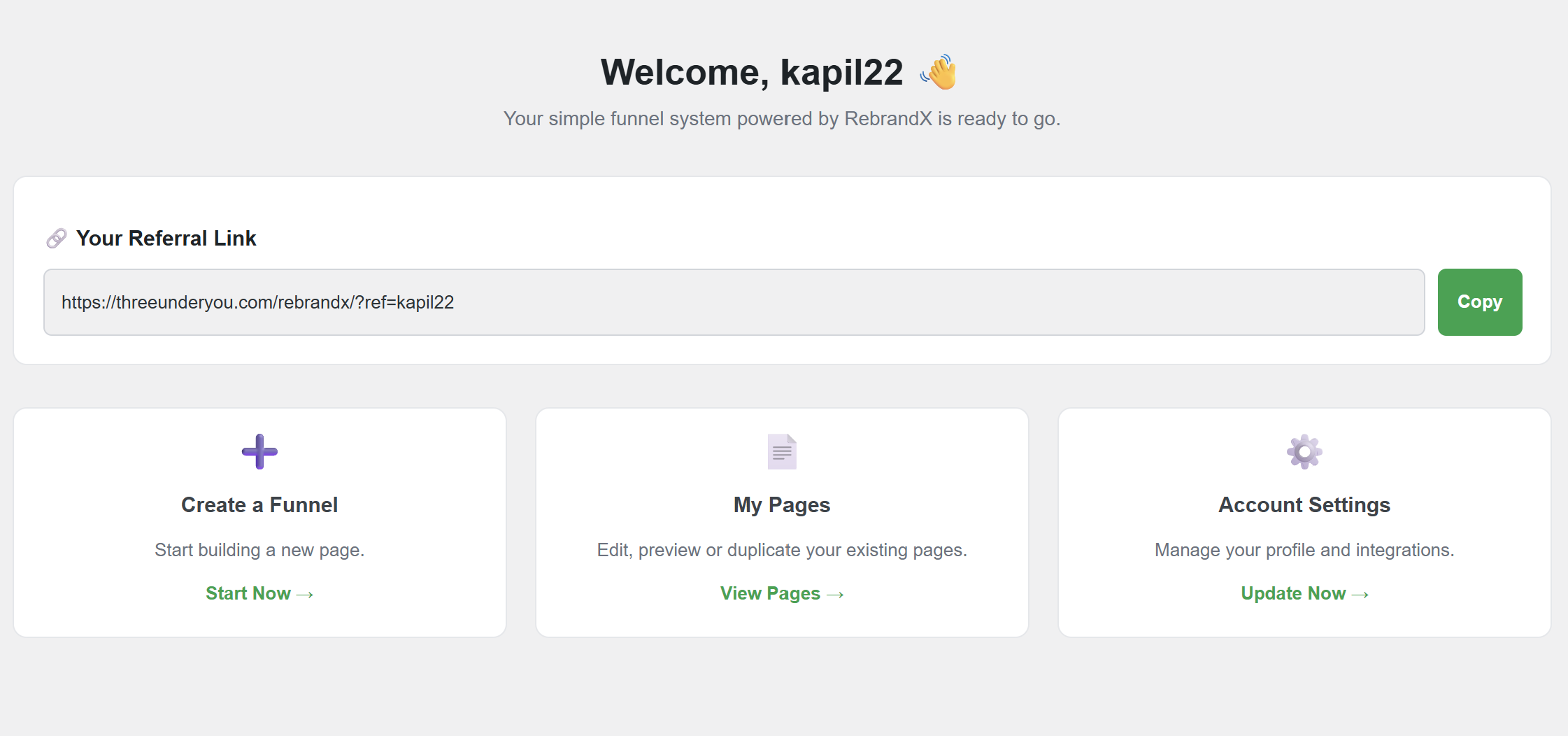
The dashboard serves as the control center for all activities within CapturePro. From here, users can access funnels, edit pages, manage capturepro links, view leads, and update account settings.
The dashboard is designed to provide quick access to all essential features without requiring technical expertise.
Funnels and Pages
Understand how to create and manage your marketing funnels.
Understanding Funnels
A funnel is a structured marketing flow that guides visitors through specific steps such as landing on a page, submitting contact information, viewing an offer, and receiving follow-up communication.
Funnels in CapturePro are pre-designed to improve conversion rates and simplify the marketing process.
Types of Pages Available
CapturePro offers different types of pages that serve various marketing purposes. These include capture pages for collecting leads, sales pages for promoting offers, bridge pages that introduce third-party products, thank-you pages for confirmations, and bonus or promotional pages designed to increase engagement.
Creating and Editing Pages
Creating a page involves selecting a funnel or template and opening it in the built-in editor. Users can modify headlines, text content, images, buttons, and call-to-action elements.
Once changes are saved, the page can be published instantly and made available for sharing.
CapturePro System
Learn how the powerful capturepro feature works.
What CapturePro Means
CapturePro refers to the ability to duplicate an existing marketing page and replace the original owner's details with a new user's information.
This allows multiple users to promote the same funnel while maintaining individual tracking, branding, and referral attribution.
One-Click Rebrand Process
The one-click rebrand process allows users to personalize a page by entering their unique ID or username into a rebrand-enabled link. Once submitted, the system automatically generates a personalized version of the page with the user's details applied.
This removes the need for manual setup and speeds up onboarding for new users.
CapturePro Links and Tracking
Each user is assigned unique capturepro links that connect traffic, leads, and signups back to their account. These links ensure that referrals are tracked accurately and that credit is assigned correctly for leads and sales generated through shared pages.
Customization and Branding
Make your pages truly your own with customization options.
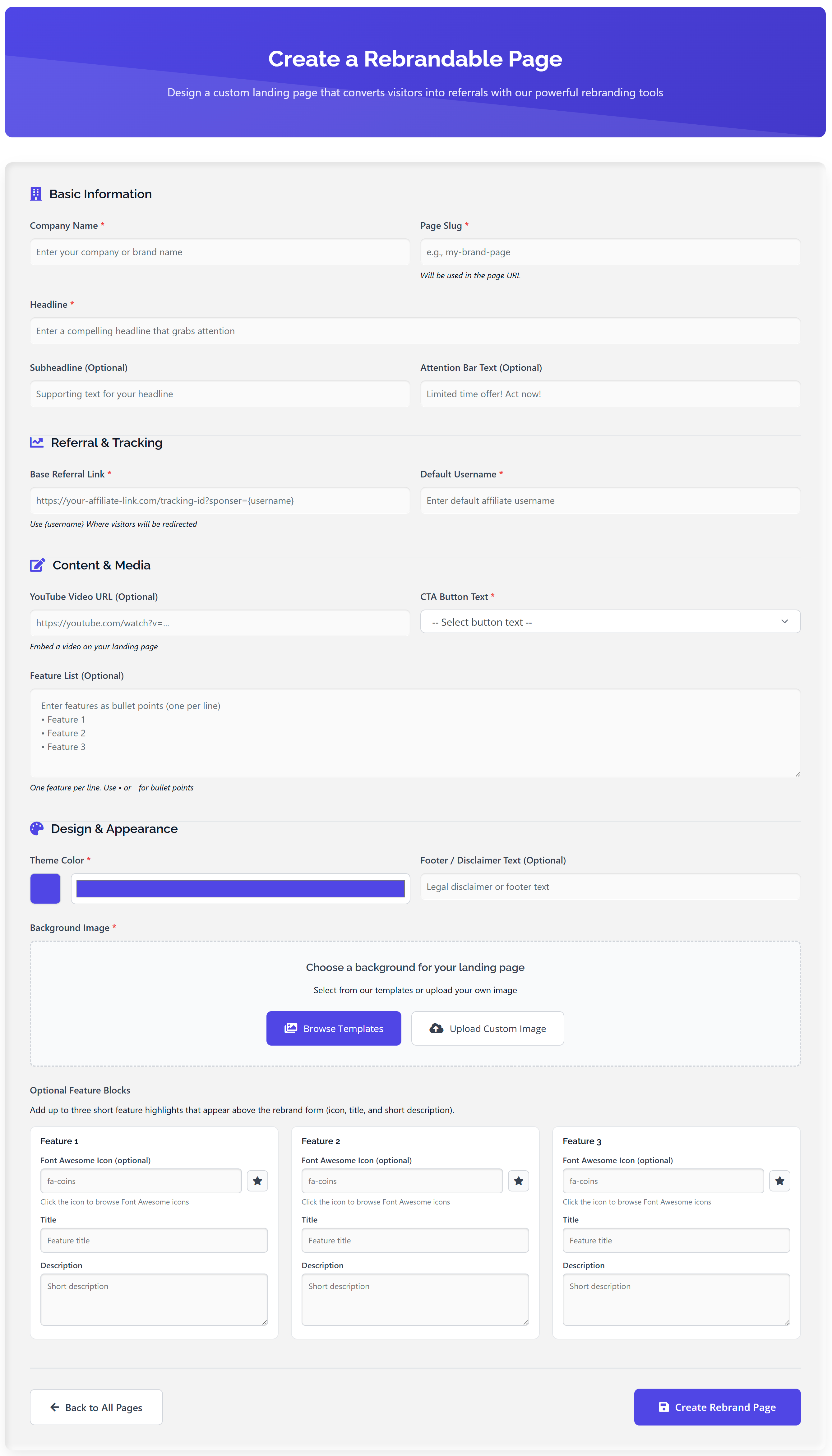
Content Customization
Users can edit textual content such as headlines, descriptions, and button labels to align with their marketing message. Visual elements like images and mockups can also be updated to better represent the user's brand or offer.
Brand Appearance Settings
CapturePro allows users to adjust visual branding elements such as color schemes and backgrounds where supported. These settings help maintain consistent branding across all pages and funnels created within the platform.
Lead Capture and Management
Collect and manage your leads effectively.
How Lead Collection Works
Leads are collected when visitors submit their information through forms embedded in capture pages. Submitted data is automatically stored within the platform and associated with the referring user's account.
Viewing and Managing Leads
Users can access their leads through the dashboard, where they can review contact details and monitor when and where each lead was generated. This helps users understand traffic performance and follow up effectively.
Follow-Up and Automation
Some funnels include built-in follow-up features such as automated email sequences or notifications. These tools help users stay connected with leads without requiring manual communication.
Availability of automation features may vary depending on the funnel or subscription plan.
Affiliate and Referral System
Build your network and earn through referrals.
Referral Tracking System
CapturePro includes a built-in referral tracking system that records signups and activity generated through a user's links. This system supports team-building and allows users to grow their network efficiently.
Commission and Earnings Structure
Earnings within CapturePro depend on the specific offer or program being promoted. Some programs may include direct commissions, team-based commissions, or structured payout models.
Users should always review the official compensation details associated with their account.
Payments and Billing
Manage your subscription and billing information.
Subscription and Access
Access to CapturePro is typically provided through subscription plans or promotional trial offers. Pricing and billing information is available within the user account and may vary depending on current promotions.
Upgrades and Additional Features
Certain advanced features, funnels, or bonus tools may require account upgrades or additional purchases. Users can manage upgrades directly from their dashboard.
Security and Data Management
Keep your account and data secure.

Data Hosting and Page Access
All pages created using CapturePro are hosted on the platform's servers and accessed through platform-generated URLs. Users manage content through the dashboard rather than external hosting environments.
Account Security Practices
Users are responsible for maintaining account security by using strong passwords and protecting login credentials. Logging out from shared or public devices is recommended to prevent unauthorized access.
Troubleshooting and Common Issues
Solutions to common problems and issues.
Page Changes Not Visible
If updates do not appear immediately, users should refresh the page, clear browser cache, or republish the page. In most cases, updates reflect after a short delay.
CapturePro Link Issues
CapturePro links may fail if the wrong ID is used or if the page is not enabled for rebranding. Users should verify the link format and ensure the page supports rebranding.
Missing Leads
If leads are not appearing, users should confirm that forms are correctly submitted and that the funnel is active. Temporary syncing delays may also occur.
Support and Learning Resources
Get help and access training materials.

Getting Help
Support is typically provided through official support channels such as email, ticket systems, or community groups. Response times may vary depending on support availability.
Training and Tutorials
Users may have access to training materials such as video walkthroughs, documentation, and live or recorded training sessions that explain how to use the platform effectively.
Best Practices for Success
Maximize your results with these proven strategies.
To get the best results from CapturePro, users should customize pages before sharing, test links regularly, use ethical marketing strategies, and avoid misleading income claims.
Consistent testing and improvement of funnels will help maximize performance.
Legal Disclaimer: CapturePro provides marketing and promotional tools only. Results vary depending on individual effort, traffic sources, and marketing skills. No earnings or results are guaranteed.